Usage
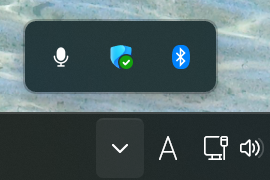
When the executable file is run, it will be stored in the task tray.
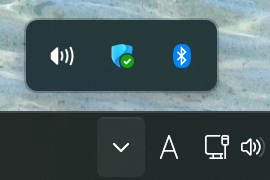
Selection screen
The currently selected device is indicated by a green circle.
Move to the target device with the Tab key and press Enter, or click the device with the mouse to select it.
Output Device
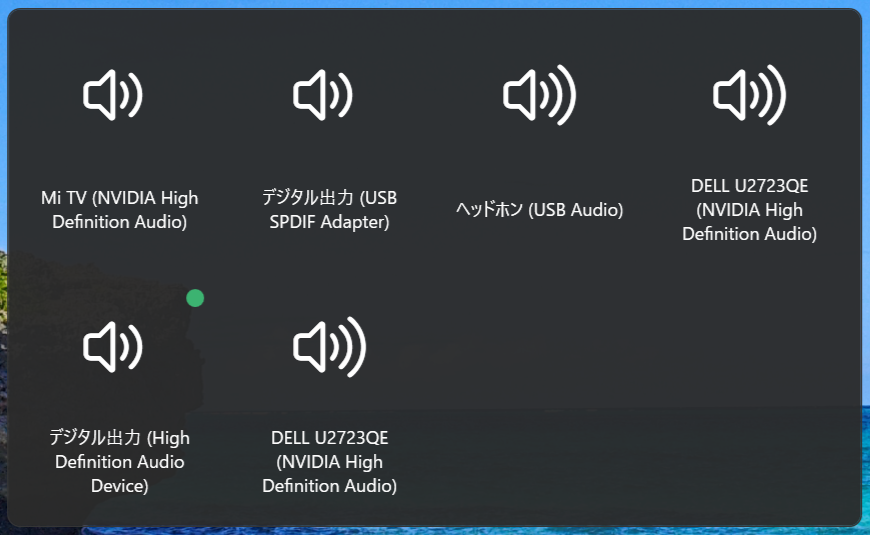
- Press
Ctrl + Alt + V, or if the task tray icon double-click action is changed toSpeakerin Settings, the selection screen will appear.
Input Device
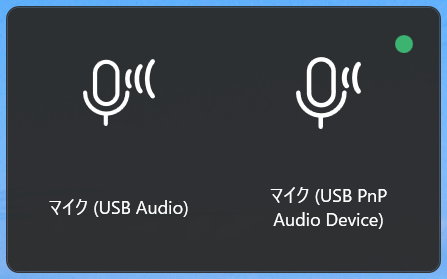
- Press
Ctrl + Alt + N, or if the task tray icon double-click action is changed toMicrophonein Settings, the selection screen will appear.
Settings
Right-click the task tray icon and select Settings to open the settings window.
General
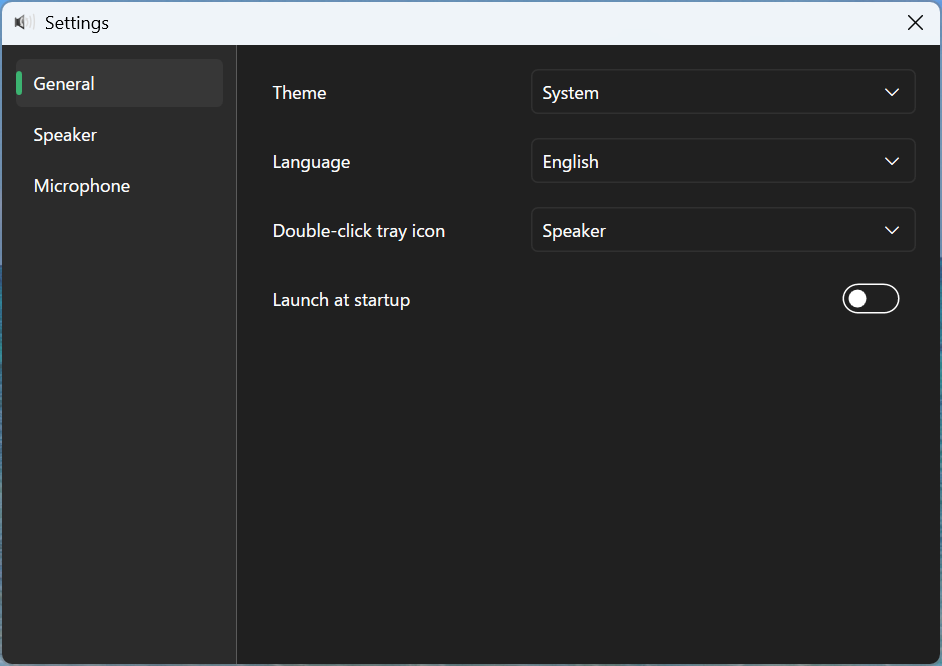
Theme
This setting lets you change the appearance of the application. You can choose from the following three themes.
System (Synchronize with system settings)
Light
Dark
Language
Language selection. The following languages are supported.
Japanese
English
Double-click tray icon
Select which window opens by default when you double-click the task tray icon. The default is Speaker. The following options are available.
Speaker
Microphone
TIP
If you select Microphone, the task tray icon changes to a microphone.
Launch at Startup
If enabled, the application starts automatically when the system starts.
Speaker
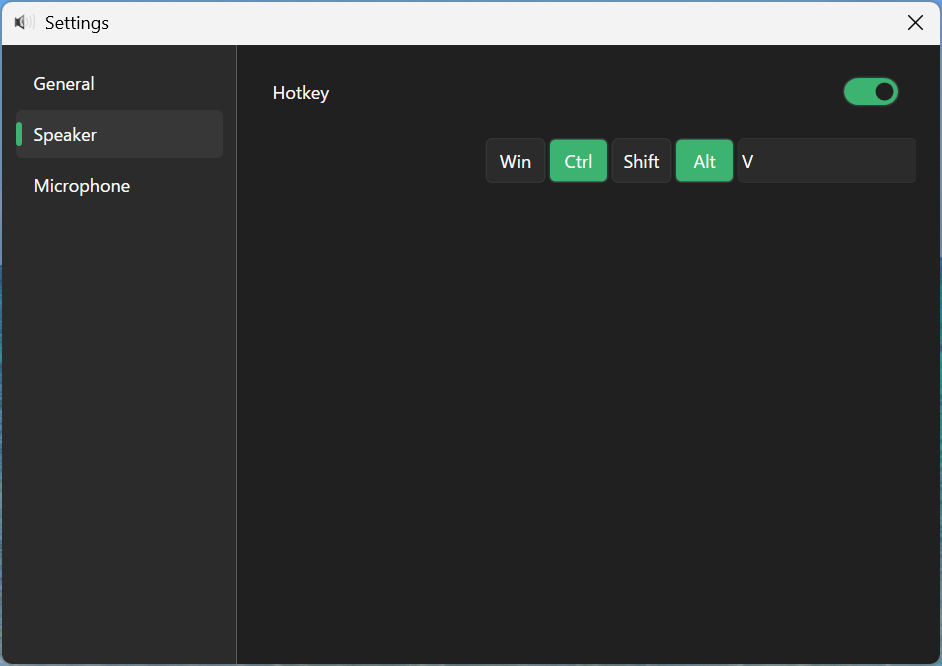
Hotkey
You can set the shortcut key to open the selection screen. The default setting is Ctrl + Alt + V.
The selected modifier key is highlighted in green. The last text box can be set to any one key.
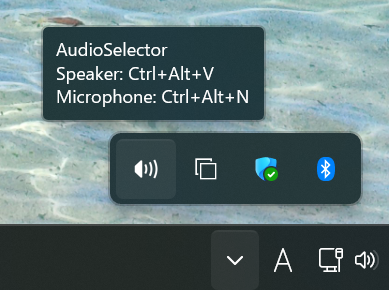
If the key is changed, it is also shown in the task tray icon tooltip.
Microphone
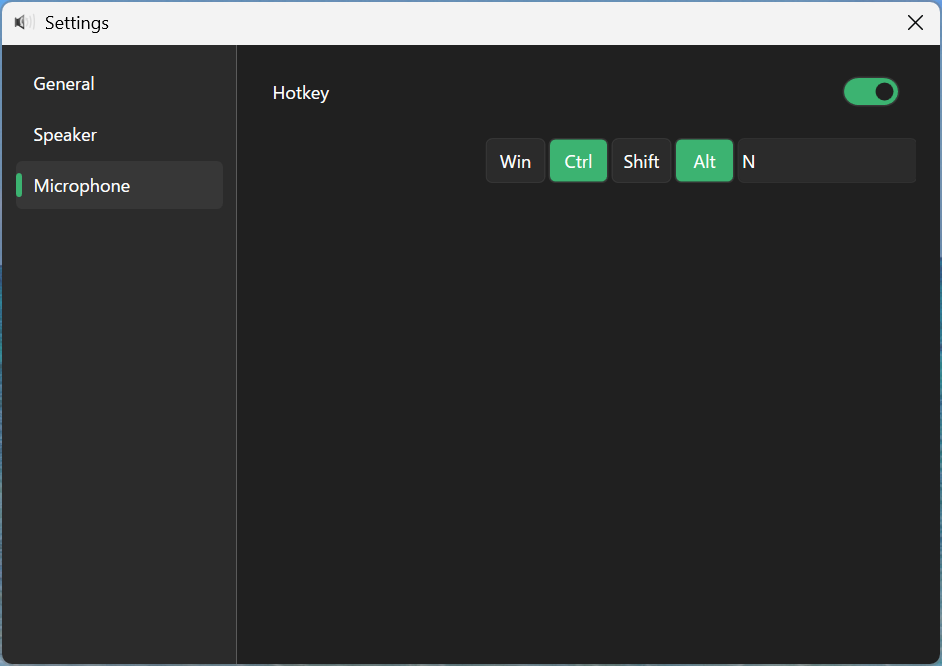
Hotkey
You can set the shortcut key to open the selection screen. The default setting is Ctrl + Alt + N.
The selected modifier key is highlighted in green. The last text box can be set to any one key.
If the key is changed, it is also shown in the task tray icon tooltip.
Task Tray Icon
Right-click to open Settings or exit the application.
The tooltip shows the current settings.
Double-click to open the selection window configured in Double-click tray icon.
TroubleShooting
If the same application is launched twice
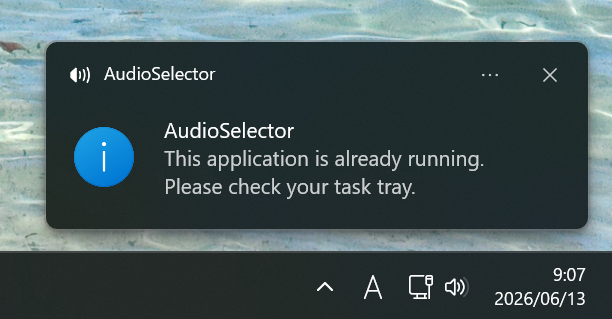
A notification appears in the task tray, and the application remains waiting.
If the hotkey is already registered by another application
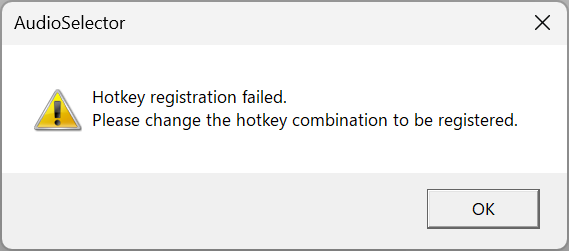
This error occurs when the selected hotkey or the default hotkey is already registered by another application. You can resolve it by changing the setting to a different key combination.